
Search and tags for your designs
Large libraries are harder to scan by preview alone. Layerre now lets you search designs by name and organize them with tags, in the dashboard and through the API.
Use search and tags together: pick a tag, then narrow by name, or search across everything and jump straight to the design you need.
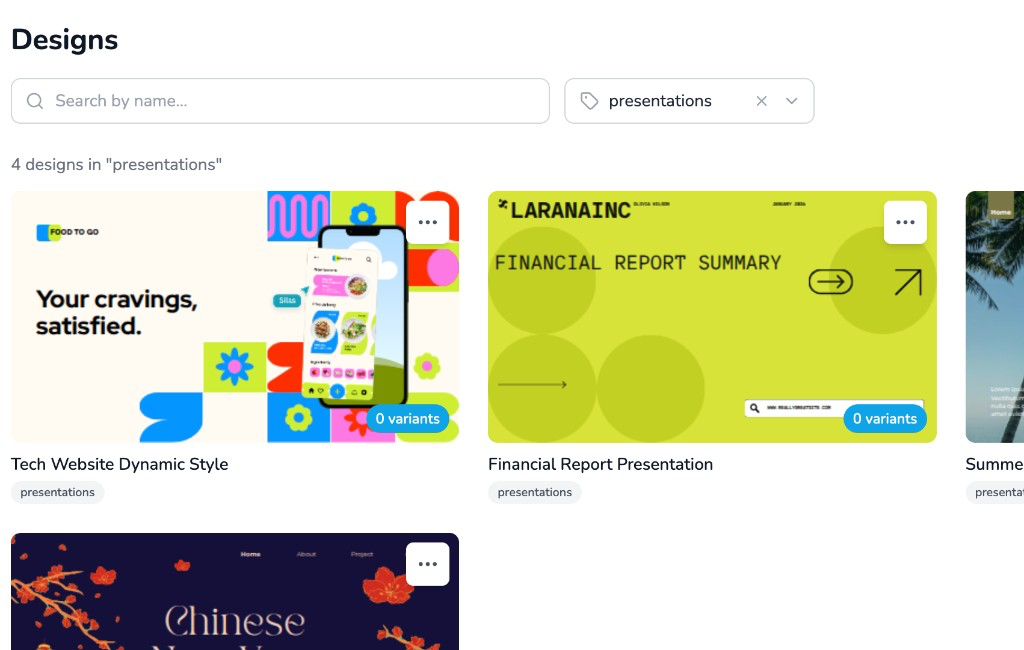
In the dashboard
On the Designs page you will see:
- Search by name — type to filter your library. Results update as you type, and your query stays in the URL so refresh and back/forward keep your place.
- Tag filter — open the tag dropdown next to search (labeled All designs when nothing is selected) to show only designs with that tag.
- Tags on each card — add or edit tags from the ⋯ menu on any design, or click a tag chip on a card to filter by it.
Pagination shows how many designs match and which page you are on, so large libraries stay easy to browse.
Via the API
The same filters work when you list templates programmatically. Call GET /v1/templates with:
q— case-insensitive name searchtag— only templates that include that tagskip/limit— pagination (unchanged)
Responses include X-Total-Count and X-Has-More headers so clients know when there is another page.
Related endpoints:
GET /v1/templates/tags— tag names with counts for the current userPATCH /v1/template/{id}with atagsarray — replace the template's tags
Full details are in the API docs.
Try it
Open the dashboard, search by name, and tag a few designs from the card menu. Or pass q and tag on your next GET /v1/templates call.